Stage 5: Rolling Rocks & Spinning KillBricks
Make sure you've finished Stage 4: Fireball Footpath & Hidden Hazard Field.
a rolling-rock ramp and a spinning-blade path, plus a sparkle trail
how moving and spinning hazards create timing pressure
two action-packed stages and your first particle effect
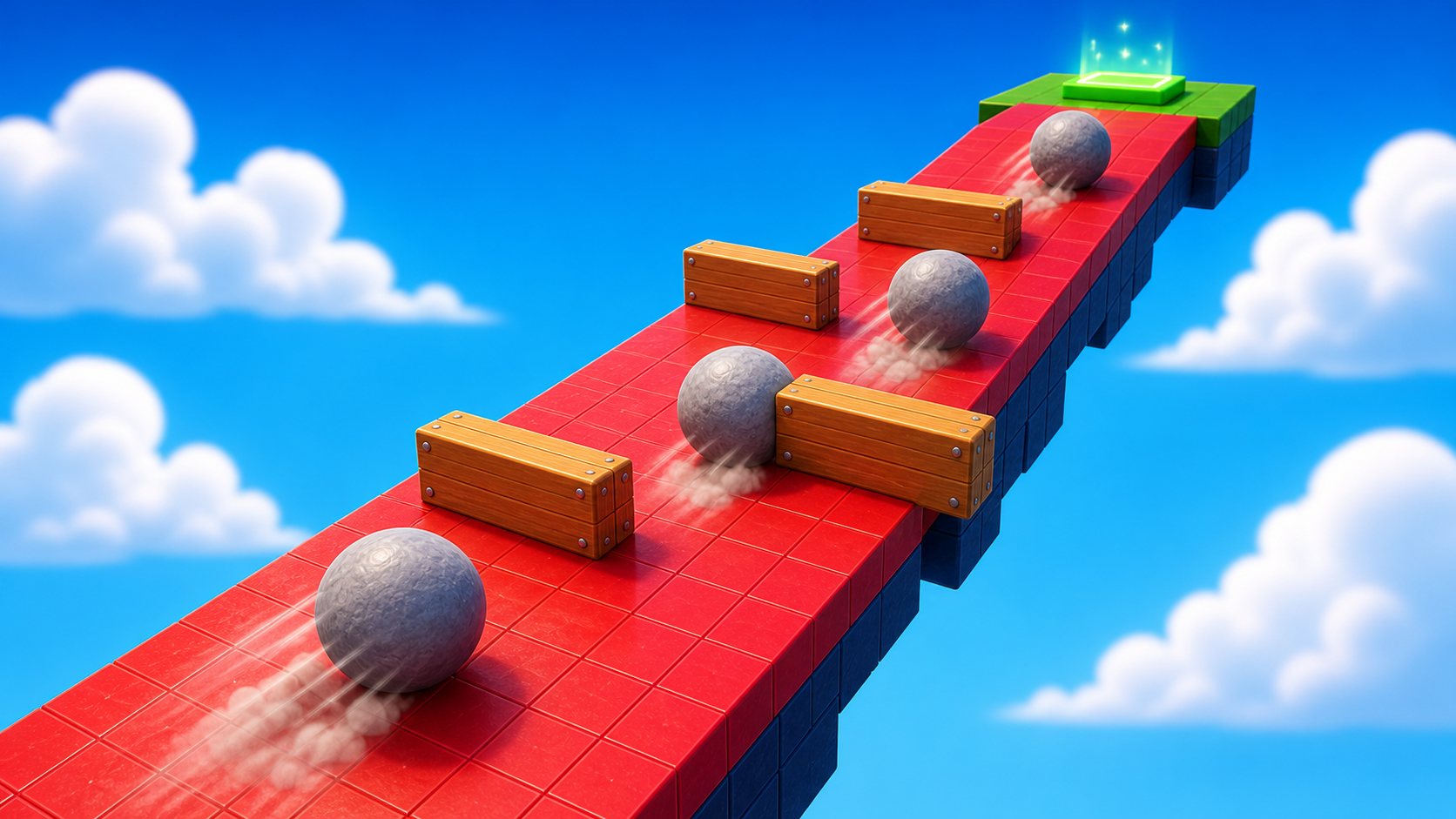
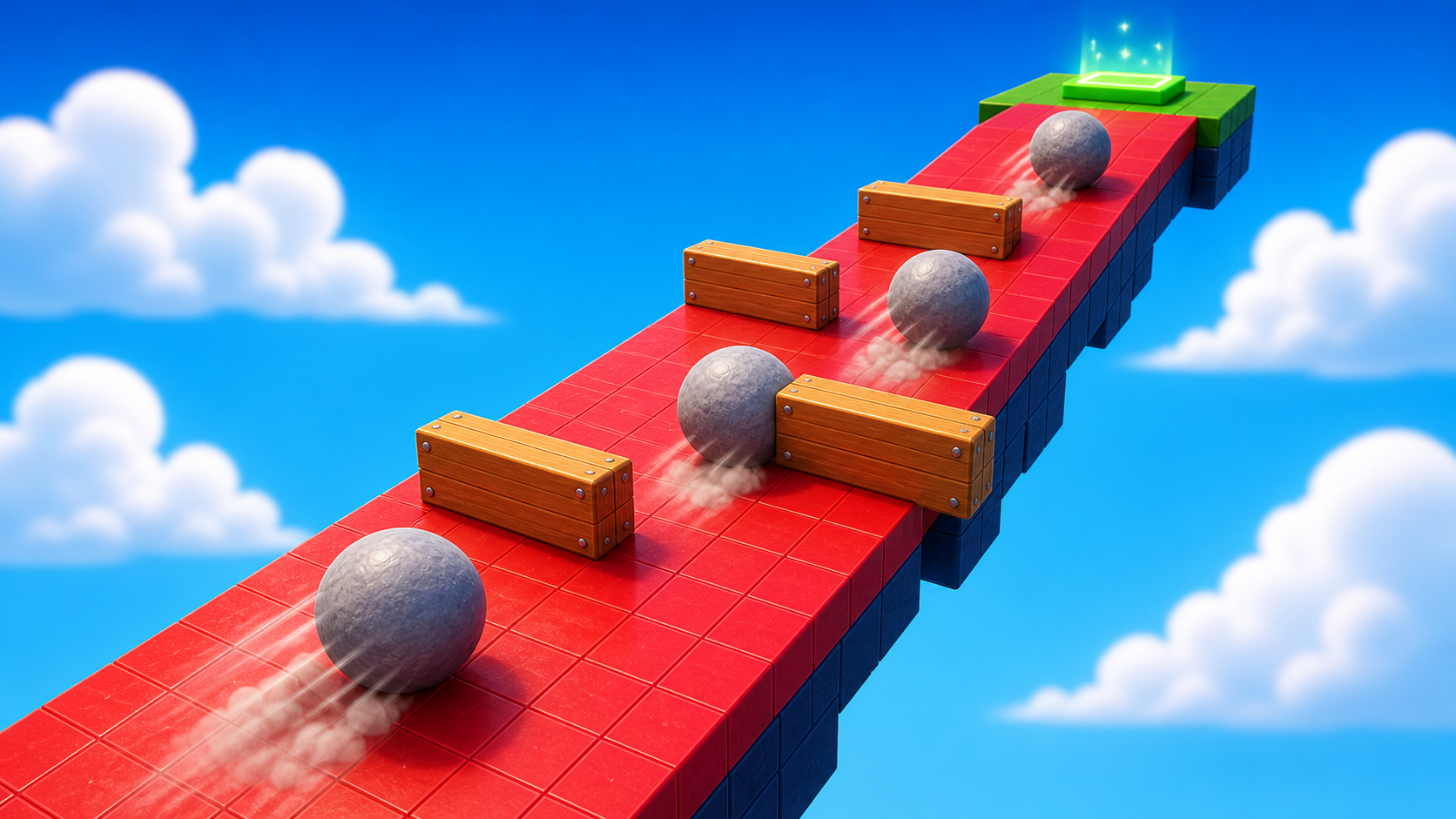
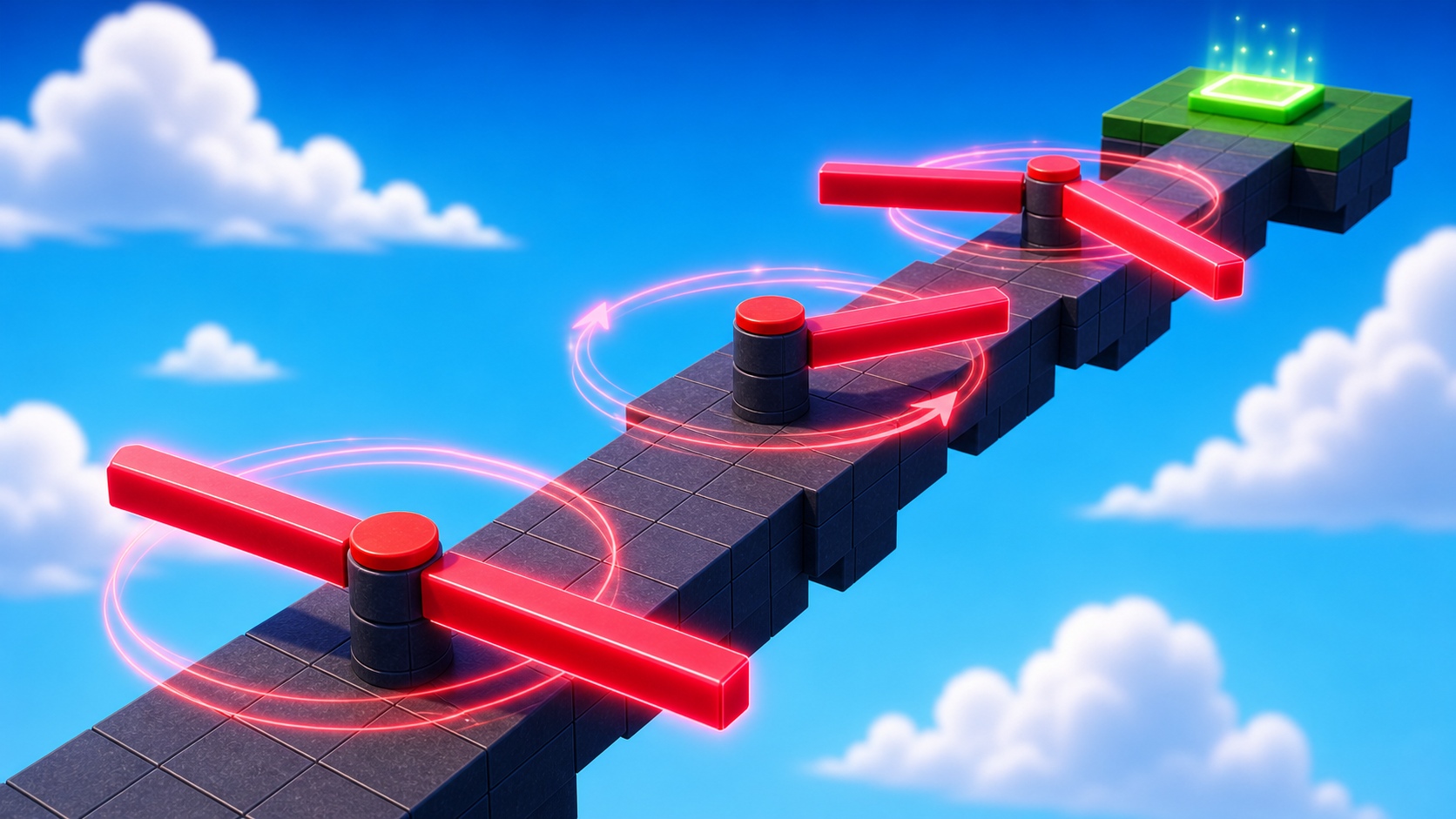
Preview the rolling-rock ramp and the spinning-blade path that follows it.
Build this stage belowThe big idea
Today you build the two most cinematic obstacles in the whole obby — the ones that make people gasp.
First, rolling boulders that come down the lane the player is climbing. With one bit of cover halfway up, the climb becomes "sprint, hide, sprint." Then spinning blades that sweep across a narrow path — the player has to read the rhythm and dash through the gap. The lesson is moving hazards create timing pressure: standing still won't save you, so the player has to commit.
And because near-misses look amazing on camera, you'll also add your first particle effect — a sparkle trail that makes the action pop.
Build it
Step 1 — Build the rolling-rock ramp
A ramp with a cover spot halfway up. Boulders roll down; the player dodges up.
Build this partRockRamp
WedgeOpen recipe
RockRamp
Wedge- Size
- 6 × 8 × 30
- Color
- Dark stone grey
- Material
- Slate
- Anchored
- ✓ Yes
- Place
- Right in front of the Stage 7 checkpoint, sloping up. X (6) is width, Y (8) is rise, Z (30) is length.
Wedges have a flat bottom and a sloped top. If the slope points the wrong way, change Orientation Y in Properties.
Build this partCoverBlock
BlockOpen recipe
CoverBlock
Block- Size
- 3 × 4 × 1
- Color
- Reddish brown
- Material
- Wood
- Anchored
- ✓ Yes
- Place
- Standing upright on the ramp, about halfway up, slightly off to one side
The cover is the key design move — without it the ramp is brutal; with it the climb becomes 'sprint, hide, sprint.'
Build this partBoulderSpawner
BlockOpen recipe
BoulderSpawner
Block- Size
- 2 × 2 × 2
- Color
- Bright red
- Material
- Neon
- Anchored
- ✓ Yes
- Place
- At the very top of RockRamp, slightly above its surface
Bright while testing so you can see it. Later set Transparency = 1 to hide it — the spawner is mechanical, not part of the level.
Step 2 — Add the script that rolls boulders
Right-click BoulderSpawner → Insert Object → Script. Delete the placeholder.
BoulderSpawner
The Script goes inside BoulderSpawner. The variables at the top are the parts you'll tune.
local spawner = script.Parent
local TweenService = game:GetService("TweenService")
local Debris = game:GetService("Debris")

-- Tune these to change how the rocks feel
local spawnInterval = 2          -- seconds between boulders
local rollSeconds = 3            -- how long a boulder takes to reach the bottom
local boulderSize = 3            -- stud diameter of each boulder
local rampDrop = -8              -- studs down (negative = down)
local rampRun = -30              -- studs forward (negative = away from spawner)

local function spawnBoulder()
  local boulder = Instance.new("Part")
  boulder.Shape = Enum.PartType.Ball
  boulder.Size = Vector3.new(boulderSize, boulderSize, boulderSize)
  boulder.Color = Color3.fromRGB(80, 60, 50)
  boulder.Material = Enum.Material.Slate
  boulder.Position = spawner.Position
  boulder.Anchored = true

  boulder.Touched:Connect(function(otherPart)
    local character = otherPart.Parent
    local humanoid = character:FindFirstChildOfClass("Humanoid")
    if humanoid then
      humanoid.Health = 0
    end
  end)

  boulder.Parent = workspace

  local destination = spawner.Position + Vector3.new(0, rampDrop, rampRun)
  local info = TweenInfo.new(rollSeconds, Enum.EasingStyle.Linear, Enum.EasingDirection.Out)
  local tween = TweenService:Create(boulder, info, { Position = destination })
  tween:Play()

  Debris:AddItem(boulder, rollSeconds + 1)
end

while true do
  spawnBoulder()
  wait(spawnInterval)
end
Press ▶ Play. A boulder spawns at the top every 2 seconds and rolls smoothly down. Touch one and you respawn.
The first five lines are your dials — bump spawnInterval for more dash time, lower rollSeconds for faster rocks, raise boulderSize for scarier ones. Try a few values and feel the difference.
Step 3 — Creator Studio: add a sparkle trail
Time for some juice. We'll add a particle effect — no code needed.
3.1 Insert a ParticleEmitter
- Pick a part players touch a lot — your CoverBlock, or even the next checkpoint pad.
- In Explorer, right-click that part → Insert Object → ParticleEmitter.
- Particles start flowing right away. A ParticleEmitter inside a part shoots particles out from that part.
3.2 Make it yours
Click the ParticleEmitter and try these in Properties:
- Color — match your channel's theme (a
ColorSequence; click it to pick). - Rate — how many particles per second.
20is gentle;100is a firework. - Lifetime — how long each particle lasts.
- Texture — open the Toolbox → search sparkle or star and paste an image id for a custom shape.
Press ▶ Play. Sparkles! Tiny effects like this are the difference between a flat game and one that looks alive on screen.
Particles are pure eye candy — and eye candy is what makes a thumbnail and a video pop. A glowing checkpoint or a sparkly cover block gives the viewer's eye something to follow. Don't overdo it, though: one or two great effects beat a screen full of confetti.
Stage 5 clip target: In Stage 8, capture the biggest motion moment: a boulder near-miss, a spinner thread, or both. This is a strong candidate for your thumbnail.
Step 4 — Add the rolling-rock checkpoint
The Stage 8 checkpoint goes at the top of the ramp — the reward for surviving. This is the eighth checkpoint.
4.1 Add another SpawnLocation
Right-click Workspace → Insert Object → SpawnLocation.
4.2 Set its properties
- BrickColor → a new color. AllowTeamChangeOnTouch → checked. Neutral → unchecked. TeamColor → matches.
4.3 Tag it with its stage number
In Attributes, add a StageNumber attribute (number type) and set its value to 8.
4.4 Add a Team
In Teams, insert a Team named Stage 8, uncheck AutoAssignable, and match its TeamColor. Drag the SpawnLocation onto the top of the ramp.
Step 5 — Build the spinning-blade path
Now a narrow path with a long arm spinning across it. Players time the gap between sweeps.
Build this partSpinPath
BlockOpen recipe
SpinPath
Block- Size
- 4 × 1 × 40
- Color
- Dark stone grey
- Material
- Concrete
- Anchored
- ✓ Yes
- Place
- Right in front of the Stage 8 checkpoint, stretching forward 40 studs
Narrow on purpose — the player has NO room to walk around the spinner.
Build this partSweepArm
BlockOpen recipe
SweepArm
Block- Size
- 10 × 0.5 × 1
- Color
- Really red
- Material
- Neon
- Anchored
- ✓ Yes
- Place
- Hovering 2 studs above the middle of SpinPath, reaching beyond both edges
Anchored = true is essential. We rotate it in code; physics would interfere if it were unanchored.
Step 6 — Add the script that spins and kills
Right-click SweepArm → Insert Object → Script. Delete the placeholder.
SweepArm
The Script goes inside SweepArm. The spinSpeed variable is your difficulty dial.
local arm = script.Parent
local RunService = game:GetService("RunService")

arm.Touched:Connect(function(otherPart)
  local character = otherPart.Parent
  local humanoid = character:FindFirstChildOfClass("Humanoid")
  if humanoid then
    humanoid.Health = 0
  end
end)

-- Bigger number = faster spin = shorter safe window.
local spinSpeed = 1.8

RunService.Heartbeat:Connect(function(deltaTime)
  local turn = spinSpeed * deltaTime
  arm.CFrame = arm.CFrame * CFrame.Angles(0, turn, 0)
end)
Press ▶ Play. SweepArm spins across the path. Walk into it and you respawn at the Stage 8 checkpoint.
spinSpeed = 1.8 is tight but fair. Try 1.2 for easy, 2.6 for hard. Press Play, time a crossing — that's how every real game tunes its hazards.
Step 7 — Add the spinning-blade checkpoint
The Stage 9 checkpoint goes at the end of the path. This is the ninth checkpoint.
7.1 Add another SpawnLocation
Right-click Workspace → Insert Object → SpawnLocation.
7.2 Set its properties
- BrickColor → a new color. AllowTeamChangeOnTouch → checked. Neutral → unchecked. TeamColor → matches.
7.3 Tag it with its stage number
In Attributes, add a StageNumber attribute (number type) and set its value to 9.
7.4 Add a Team
Insert a Team named Stage 9, uncheck AutoAssignable, match its TeamColor, and drag the SpawnLocation onto the end of your path.
Understand it
Rolling boulders feel different from fireballs because direction matters. A fireball crosses the path — stand still and it passes. A boulder follows the player's lane — standing still doesn't help, so the player has to move through it. The cover block is the smallest piece of level architecture there is: one regular block in one specific spot turns a brutal dash into a fair "sprint, hide, sprint."
A spinner is the simplest cyclical danger. It never leaves, so the player has to learn its rhythm and commit to the gap. The script spins it with CFrame.Angles a tiny bit every frame — that exact pattern is behind every rotating part in every Roblox game. Pair it with a narrow path and the player can't walk around it.
A ParticleEmitter adds particles with no script at all — it's pure presentation. Presentation is a real part of game design: the same dodge feels twice as exciting with a sparkle trail following the player. That's why creators sweat the visuals.
Try this
Try this
Three short experiments. Predict before you run, then test your guess.
Delete the cover block and play the ramp. Predict how it feels, then put cover back. How much work was that one block doing?
Put a spinner on a wide path (twice the spinner's reach). Do players still respect it, or just walk around? What does that say about walls and danger working together?
Both of today's obstacles make great clips. When you record later, which gives the better moment — the boulder you just dodge, or the spinner you thread at the last second?
Test your stage
Before moving on:
- Press ▶ Play and start from the Stage 7 checkpoint.
- Use the cover, watch the boulders, and climb the ramp without getting knocked back.
- Watch one full spin, then cross the blade path without getting hit.
- Confirm your sparkle trail shows up in Play mode.
- Touch each new checkpoint, reset, and confirm you respawn at the right one.
- Design check. Do the boulders and the spinner each have a clear, fair opening to move through?
If it breaks
- The BoulderSpawner doesn't roll any boulders. The Script must be inside the spawner. Check Output (View → Output) for red errors.
- Boulders roll up the ramp. Open the Script and flip
rampRun = -30torampRun = 30. - The boulders feel impossible. Bump
spawnIntervalto3or4, or lowerboulderSize. - The arm doesn't spin. The Script must be inside SweepArm; check Output for a
RunServicetypo. - The arm flies off when it spins. Anchored is off. Turn it on.
- My particles don't show. The ParticleEmitter must be inside a part. If Rate is
0, raise it. If it's hidden inside the ground, the part may be buried — move it up a little. - A checkpoint sends me to the wrong stage. Color mismatch — match BrickColor, TeamColor, and the Team's TeamColor.