Stage 10: Post & Premiere
Make sure you've finished Stage 9: Edit in iMovie and exported your video. This is the final stage!
a posted video and a class watch party
how creators publish safely and premiere their work
your video on the camp channel and a link to share
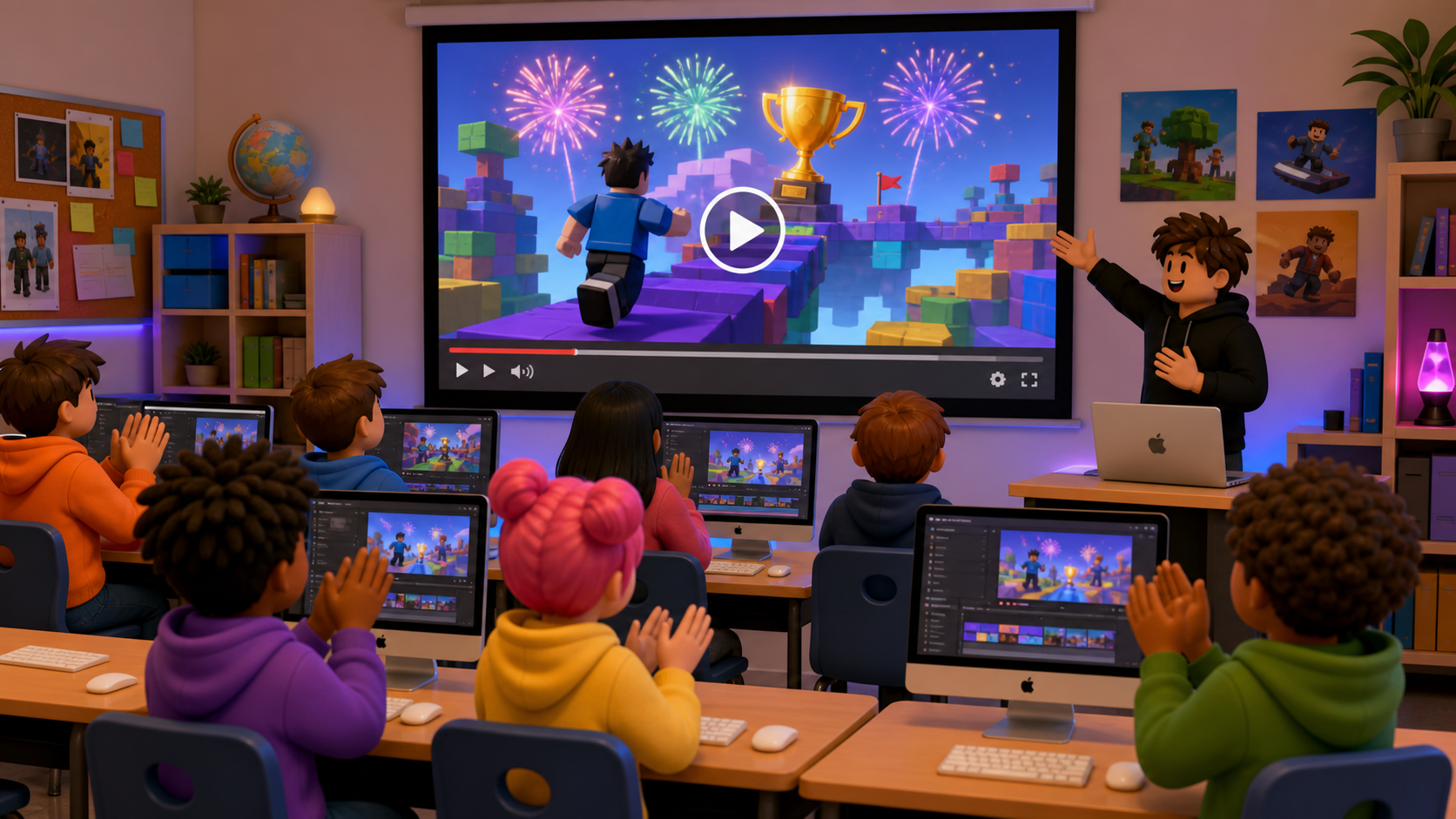
Preview the finale: post to the camp channel, premiere on the big screen, and take home your link.
Build this stage belowThe big idea
You built a game, published it, recorded it, and edited it. Today you do the last thing every creator does: put it in front of an audience.
Because you're 7–10, you won't make your own YouTube account today — that's a job for a grown-up. Instead, your coach posts your finished video to one shared camp channel, set to Unlisted (only people with the link can see it). Then the whole room watches everyone's videos together — a premiere watch party on the big screen. You go home with a link your family can watch.
Walk the room through what's about to happen so it isn't a mystery:
- Show the camp YouTube channel and the Unlisted setting (explain: "only people with the link can see it — it won't show up in search").
- Upload one finished video live so they see the steps.
- Show the share link and where you'll send it (the parent email / handout).
Then collect everyone's
.mp4and post them while campers prep for the watch party.
Build it
Step 1 — Hand your video to your coach
Your coach is the one with the keys to the camp channel. Get your finished .mp4 to them the way your camp set up — a shared folder, a USB drive, or a desktop hand-off.
Double-check before you hand it over:
- It's the exported
.mp4, not the iMovie project. - The title and thumbnail are ready.
- You watched it once, start to finish, and you're proud of it.
Step 2 — Coach posts it (Unlisted)
Here's what your coach does — watch so you understand the steps for when you do it at home someday:
- Sign in to the camp YouTube channel.
- Click Create → Upload video and choose the
.mp4. - Set the Title (your game name) and upload the thumbnail.
- Set the video's Audience according to the camp's YouTube policy and a grown-up's direction.
- Set Visibility to Unlisted.
- Click Publish and copy the share link.
- Unlisted means only people with the link can view it — it won't appear in search or on the channel's public page. That's the safe default for camper work.
- YouTube also asks for an Audience setting. Follow your camp's policy for kids' content and media consent; do not guess.
- Post on one camp/teacher channel, never on kid accounts.
- Check your camp's media-consent list before posting any camper's video; if a family didn't consent, screen that video in the room only and skip the upload.
- Send links home through your normal parent channel (email/handout), not publicly.
Step 3 — Premiere watch party
This is the payoff for the whole week. Put the videos on the big screen and watch them together.
- Watch each video as a room.
- After each one, give two quick claps of feedback: one thing that was awesome, and one cool idea you'd steal.
- Cheer for the fireworks. Every video worked hard to get there.
Step 4 — Take your link home
Your coach sends your video link home to your family. Now anyone you share it with can watch your obby — the game you built, recorded, and edited.
Want your video on your own channel someday? That's a great goal — and it's a job to do with a parent, because YouTube accounts are for grown-ups (and kids' content has special rules). Bring this checklist home:
- A parent signs in to (or makes) the channel.
- Upload your
.mp4, add the title and thumbnail. - Start Unlisted or Private so your family sees it first.
- Talk together about comments and privacy before going public. Your camp video proves you can do every step. The only new part at home is who owns the account.
Understand it
Unlisted is the creator's safe middle ground. Public means anyone can find it; Private means only you. Unlisted means only people you give the link to — perfect for sharing camper work with families without putting it in front of the whole internet.
Premiering matters as much as making. A video nobody watches is just a file. Putting it in front of an audience — even a friendly room of campers — is what makes you a creator instead of just an editor. The reactions you get are the reason to make the next one.
The grown-up-owns-the-account rule isn't a roadblock — it's how it works for everyone your age. You did every creative part yourself: the game, the recording, the editing, the thumbnail. The only piece that waits for a parent is the account. That's true for every young creator, and now you know exactly how the whole pipeline works.
Try this
Try this
Three short experiments. Predict before you run, then test your guess.
Before the watch party, predict which moment in your video will get the biggest reaction from the room. Watch their faces. Were you right?
Compare your video to a friend's. What did they do that you'd borrow next time — a better hook, tighter cuts, a funnier title?
You just ran the whole pipeline: build → publish → record → edit → post. Which part was your favorite? That's a clue about what kind of creator you might become.
Test your stage
Before you call the course complete:
- Your finished
.mp4is in your coach's hands. - Your video is posted to the camp channel as Unlisted (or screened in the room if a family didn't consent).
- You watched the premiere and gave feedback on a friend's video.
- You have a link to take home.
- Creator check. Are you proud of it — the game and the video?
If it breaks
- My video file is missing. Check your Roblox YouTuber Clips folder, Desktop, Movies folder, and camp shared folder. Re-export from iMovie if you have to; your project is still there.
- The upload looks blurry on the big screen. It may still be processing — YouTube sharpens up a minute or two after upload. Refresh and try again.
- The thumbnail didn't take. Custom thumbnails sometimes need the channel to be verified, or the image to be under the size limit. Your coach can swap it after upload.
- I want to share it but I'm not sure it's safe. Unlisted links are safe to share with family. Don't post the link anywhere public — that's a conversation to have with a grown-up first.
The finale should feel like a celebration, not a scramble:
- Collect and upload in the background while campers prep the watch party — don't make 20 kids wait on one upload queue.
- Re-state the Unlisted + consent rule out loud; have your media-consent list open as you post.
- For the watch party, set a clap-and-compliment rhythm so feedback stays kind and quick.
- Send links home through your normal parent channel, and include the "post it for real at home" checklist so families can continue if they want.
- Hand out certificates — every camper ran the full build-to-post pipeline this week.