Setup
Welcome to your own creator studio! This week you'll build a Roblox obby, publish it so other kids can play, record short gameplay clips on your Mac, edit them in iMovie, and post a video through the camp channel. This page is a one-time setup — after this, every building stage starts from the same blank workspace.
Helpful links (optional reading)
Brand new to Roblox Studio? These short Roblox docs are nice to skim:
- Interface Overview — a tour of the buttons and panels in Studio.
- Parts — how to create and shape blocks. We'll use a lot of these.
- Intro to Scripting — only needed if you plan to try the Hard Stretch Challenges.
Two tools you'll use later in the week (no need to open them yet):
- Roblox Creations — the page where you'll publish your game in Stage 8.
- iMovie — the Mac video editor you'll use in Stage 9. If it is not installed, ask a coach before opening the App Store.
- Screenshot toolbar / QuickTime Player — built-in Mac tools for screen recording. You'll use one of them in Stage 8.
The big idea
Every building stage we make over the next seven lessons starts from the same place: a small Start Platform in the sky with one SpawnLocation on it. That's it. No floor below, no decorations, nothing in the way.
A near-blank workspace is on purpose. The obby will float in the sky like a giant floating obstacle course, and the Start Platform is the one safe spot — the place a player lands when the game starts. Each stage builds on top of the last, so what we make today becomes the foundation everything else rests on.
But here's the twist that makes this course different: you're not just a builder, you're a creator. From day one, you'll think about how your game will look on screen — the colors, the sounds, the moments worth recording. By the end of the week you'll publish it, record other kids playing it, and post a video. The building has a payoff: views.
As you work through the course:
- Build the default version of every stage first so your obby always has a complete path.
- Test each stage before moving on.
- Use Medium and Hard Stretch Challenges only when the default version works.
- Keep your colors, materials, and theme consistent — a game that looks good records well.
- Keep a small list of moments you want to capture later. In Stage 8, those notes become your clip checklist.
Build it
Step 1 — Open the Baseplate template
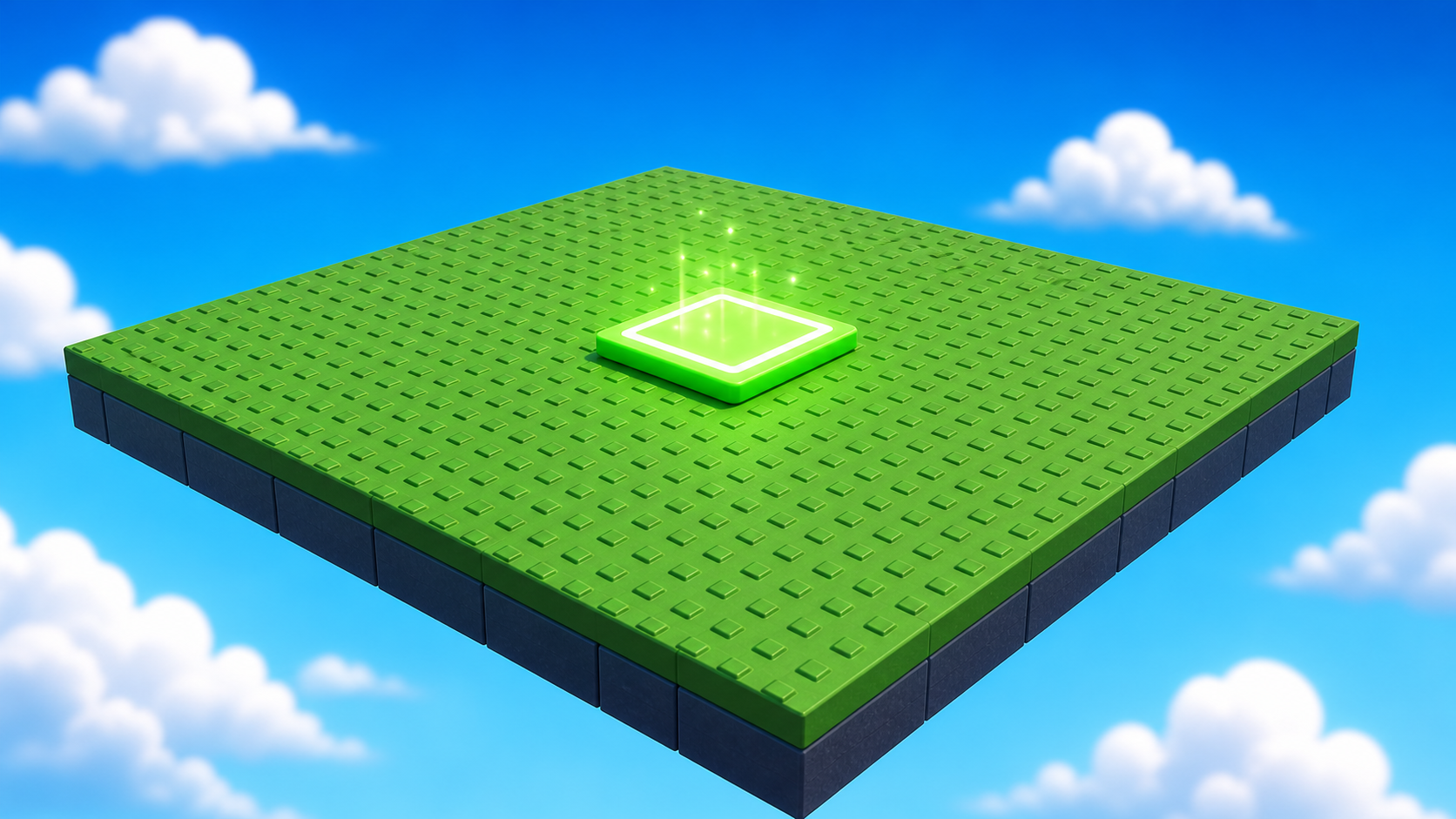
Every obby starts with the simplest possible template — a flat green floor, a sky, and one SpawnLocation. We pick this template because it has nothing distracting in it.
Open Roblox Studio. On the New tab, pick the Baseplate template.
Step 2 — Delete the Baseplate
Our obby will be platforms floating in the sky, not sitting on a giant green floor. So let's get rid of the floor before we add anything else. (If we waited until later, our parts would all sit on top of the floor and we'd have to move every single one.)
- In the Explorer panel (top right), expand Workspace.
- Find Baseplate.
- Right-click it → Delete (or press the Delete key).
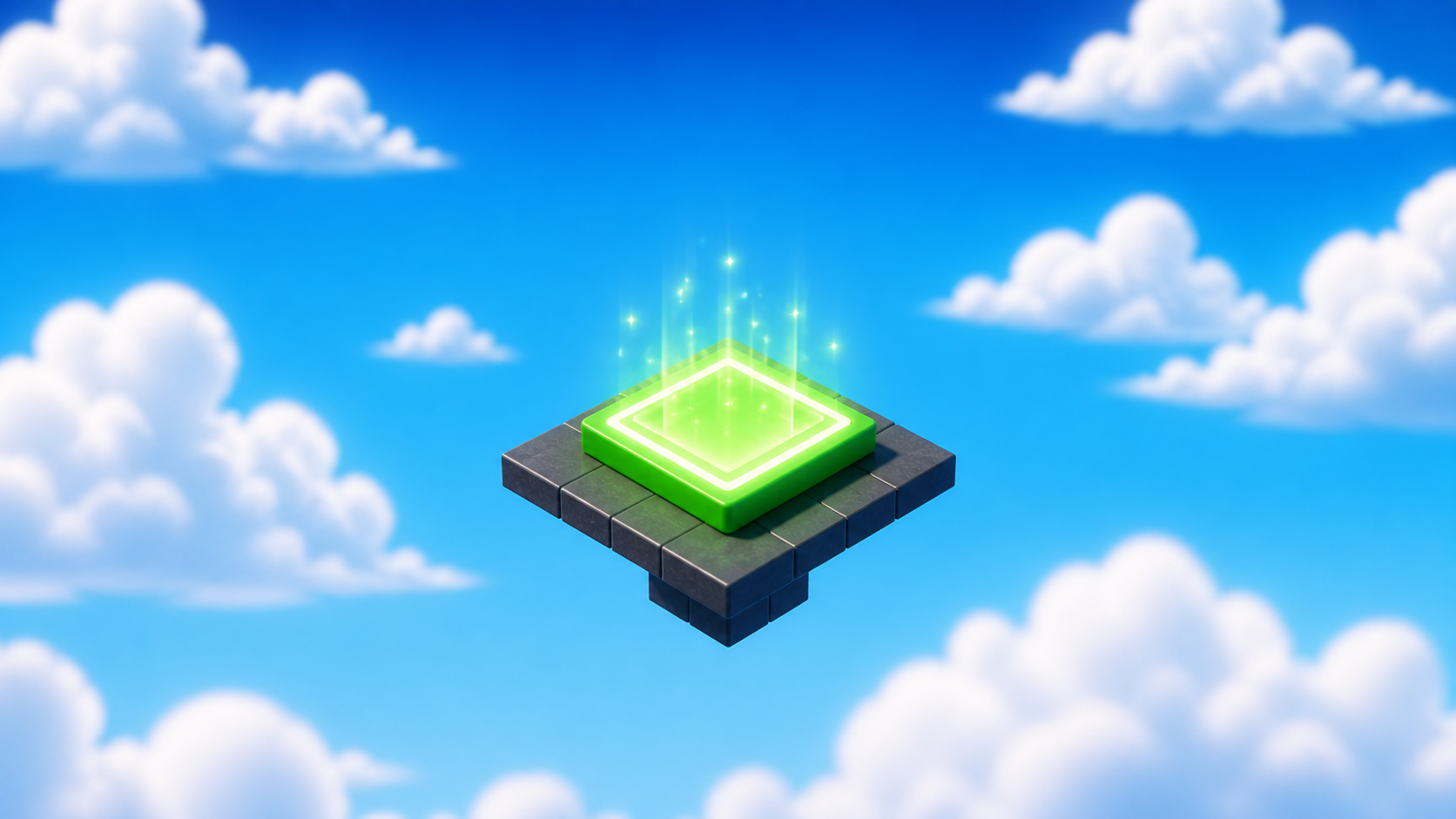
The green floor disappears and you're left with just the SpawnLocation in the sky.
Step 3 — Build the Start Platform
The SpawnLocation can't float in nothing — we need a small platform under it for the player to stand on. We call this the Start Platform: the simple safe spot where the obby begins.
3.1 Make the Start Platform
- In Workspace, click + → Part.
- Click the new part and open the Properties panel.
- Set Size to
[30, 1, 30]— wide enough to stand on, thin enough to stay out of the way. - Set BrickColor to something calm (light grey, sand, or white).
- Set Material to Concrete or Smooth Plastic.
- Set Anchored to checked. We don't want the Start Platform falling.
- Rename the part to Lobby. That shared part name keeps later course instructions compatible, even though we will talk about it as the Start Platform.
3.2 Park the SpawnLocation on the Start Platform
Drag the SpawnLocation so it sits centered on top of the Lobby part. That's the spot every new player will appear when Play starts.
Step 4 — Name your channel
You're a creator now, so let's name the show. Decide two things and write them down (a sticky note next to your computer is perfect):
- Your channel name — what would your Roblox YouTube channel be called? Something fun and easy to say out loud.
- Your game name — what will your obby be called? This becomes the title of your published game and the title of your video.
You don't type these into Studio yet. They're your plan for the week. Picking them now means every choice you make — colors, sounds, the celebration room — can match your theme.
A good channel name and game name sound good when you say them. Test yours: "Welcome back to [channel name]! Today we're playing [game name]!" If it sounds fun to say, it's a keeper.
Step 5 — UI Scavenger Hunt and Mac creator tools
Before we start building, let's get to know Roblox Studio. The faster you find buttons and panels, the faster every stage feels. See if you can find each of these. Point them out to a partner (or yourself):
- The Toolbox — where we'll grab pre-made parts, sounds, and particles.
- The Properties panel — where we change a part's color, size, and other settings.
- The Explorer panel — the list of everything in your game.
- The Output window — where the game tells us if something went wrong.
- The big green ▶ Play button — to test your game.
- The Workspace folder in Explorer — the main place all your game's parts live.
- The Teams folder in Explorer — we'll use this in Stage 1.
Found them all? You're ready.
Before the building stages start, make sure the Mac tools are easy to find:
- Press Shift + Command + 5. You should see the Screenshot toolbar with screen recording buttons. Press Esc to close it.
- Open QuickTime Player from Applications. If the Screenshot toolbar is blocked, QuickTime can also start a screen recording.
- Open iMovie from Applications. If it asks to create a library, use the default and close it for now.
- In Finder, make a folder named Roblox YouTuber Clips in Movies or Desktop. This is where your recordings and exports will go.
On managed Macs, screen recording or microphone access may need permission in System Settings → Privacy & Security. Check this before Stage 8 so the playtest party does not stop for permission popups.
Step 6 — Save the project
In Studio's top menu: File → Save As. Name your file something like My Obby — First Last. You'll come back to this same file at the start of every stage.
Understand it
Two design choices on this page are worth pausing on.
We delete the Baseplate because every checkpoint in the obby will move the player to a new spot in the sky. If a flat floor existed below, a player who fell would land on it and the checkpoint system would feel pointless. Removing the floor turns "fall = you have to climb back" into a real consequence — which is what makes an obby feel like an obby. It also makes for way more exciting clips when you record later.
We name the channel before we build because creators plan their look first. When you know your theme, you stop making random choices and start making matching ones. A game that looks like it was made on purpose is a game people want to watch.
Test your setup
- Roblox Studio is open with a Baseplate project.
- The Baseplate (green floor) is deleted.
- A Start Platform part named Lobby (30×1×30, anchored) sits in the Workspace with the SpawnLocation centered on top of it.
- You wrote down your channel name and game name.
- You found all seven items in the UI Scavenger Hunt.
- You opened the Mac Screenshot toolbar with Shift + Command + 5.
- iMovie opens on your Mac.
- You made a Roblox YouTuber Clips folder.
- Your project is saved with a name you'll recognize tomorrow.
- Design check. Stand on the Start Platform in Play mode. Does it feel like a clear, safe beginning? (Boring is fine for now — Stage 1 starts the obby right next to it.)
If it breaks
- Roblox Studio won't open. Check that you're signed in to Roblox in your browser, then click the Open Studio button again from the Roblox website. If it still won't launch, ask a Code Coach — sometimes Studio needs a reinstall.
- I can't find the Baseplate template. It's under the New tab, in the All Templates list. If the New tab is hidden, look for File → New in the top-left menu.
- I accidentally deleted the SpawnLocation, not the Baseplate. Press Command+Z right away to undo. If undo doesn't work, right-click Workspace → Insert Object → SpawnLocation to make a new one.
- A panel is missing from my Studio screen. Open the View menu at the top. Click the missing panel name (Explorer, Properties, Output, Toolbox) to turn it back on. If your Studio screen looks completely different from the screenshots, ask a Code Coach before you start Stage 1.
- Shift + Command + 5 does not show recording buttons. Ask a coach to check macOS permissions or use QuickTime Player → File → New Screen Recording as the backup path.
- iMovie is missing. Ask a coach. Do not sign in to an Apple ID or install apps on your own.