Stage 4: How Far Is the Wall?
We code the mBot in mBlock 5. Keep this tab open all week. Open in a new tab — don’t use the buttons in this page to leave the course.
a program that reads the distance sensor and reacts when something gets close
what a sensor value is, and how a robot uses a changing number to notice the world
an mBot that shows green when the path is clear and red when a wall is near
Before campers code, show the room:
- Run a program that makes the on-screen cat say the ultrasonic number. Wave your hand closer and farther and let the room watch the number change.
- Ask: "What number do we see when nothing is in front? What about when my hand is right there?"
- Switch to the LED version: green when clear, red when close. This is the leap — the robot is now reacting to the world, not just following a script.
The big idea
Until now, your robot has been blind. It did exactly what your blocks said and never noticed the room. Stage 4 gives it a sense.
The ultrasonic sensor is the pair of round "eyes" on the front. It works like a bat: it sends out a sound you can't hear, waits for the echo to bounce back off something, and measures how long that took. From that, it gives you a distance — a number, in centimeters, of how far away the nearest thing is. A small number means something is close. A big number means the path is clear.
That number is a sensor value, and it changes as the world changes. Reacting to a changing number is the heart of every smart robot.
        ((( sound )))  →   🧱
   mBot  ─────────────────  wall
            distance = a number (cm)
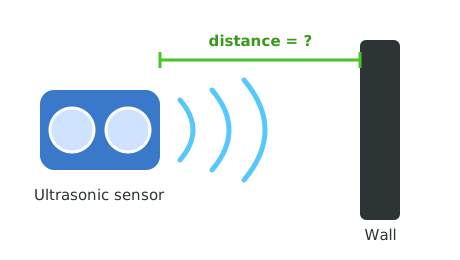
Sound out, echo back, distance measured — many times every second.
- ultrasonic
- a sound too high for people to hear
- distance
- how far away the nearest thing is, in centimeters
- sensor value
- the number a sensor gives you right now
- forever
- a loop that keeps checking, over and over
- condition
- a yes-or-no question the robot asks, like 'is it close?'
Make sure you've finished Stage 3: Give It a Voice, and that mBlock says Connected. Keep the robot still on the desk for this stage — we are reading, not driving.
Build it
Step 1 — See the number
First, just look at the sensor value. Use the on-screen cat to say the distance, over and over.
Read the sensor
when green flag clicked
forever
say (ultrasonic distance (cm) :: sensing)
end
Run it. Move your hand in front of the sensor. The number on screen drops. Pull your hand away — it climbs. You are watching the robot sense.
Step 2 — Ask a question about the number
A number is more useful when the robot decides something from it. Ask: "Is the nearest thing closer than 15 cm?" That yes-or-no question is a condition.
Close or clear?
when green flag clicked
forever
if <(ultrasonic distance (cm) :: sensing) < (15)> then
set led [all v] to color [#ff3030] :: looks
else
set led [all v] to color [#47c621] :: looks
end
end
Run it. Red when your hand is close, green when it is far. The robot checks the question many times a second inside the forever loop.
Step 3 — Add a warning beep
Make the robot beep when something gets close, so it can warn you without you watching the lights.
Beep when close
when green flag clicked
forever
if <(ultrasonic distance (cm) :: sensing) < (15)> then
set led [all v] to color [#ff3030] :: looks
play tone on note (A5) for (0.2) beats :: sound
else
set led [all v] to color [#47c621] :: looks
end
end
Now the robot flashes red and chirps whenever a wall, hand, or friend gets too close.
Pacing Lab
This lab is required before you move on. The goal is to understand the number, not just react to it.
Part A — Distance log (20 minutes)
With the "say the number" program running, measure and write down:
Nothing in front:        ______ cm
My hand far away:        ______ cm
My hand a little close:  ______ cm
My hand very close:      ______ cm
The smallest number I can get: ______ cm
Then pick the number where you think "too close" begins. That is the number you will use in your if block.
Part B — Threshold partner check (10 minutes)
Set your "close or clear" program to use your number from Part A. Have a partner slowly move a book toward the sensor and call out the exact moment the light turns red. Does it switch where you wanted? Adjust the number until it does.
Understand it
The big leap in this stage is the forever loop. Without it, the robot would check the distance once, the instant you clicked the flag, and never again. The loop makes the robot ask its question over and over, so it always reacts to right now. A robot that senses but only checks once is barely sensing at all.
The number you chose — 15, or whatever felt right — is called a threshold: the line between "fine" and "too close." Picking a good threshold is a real design choice. Too small and the robot reacts only when it is about to crash; too big and it panics at things across the room. There is no single correct answer; there is the answer that works for your robot, your floor, and your goal. You will reuse this exact pattern in the next stage to keep the robot from crashing.
Try this
Try this
Three short experiments. Predict before you run, then test your guess.
Before you run it: if you change < (15) to < (40), will the robot turn red sooner or later as your hand approaches? Decide first.
Point the sensor at a soft pillow, then at a hard wall, from the same distance. Do you get the same number? Soft, angled, and shiny surfaces can fool the echo — good to know before Stage 5.
The robot can now sense a wall and it can drive (Stage 1). What is the one rule that turns those two skills into a robot that never crashes? You will build exactly that next.
Test your stage
- The on-screen number changes as you move your hand toward and away from the sensor.
- The LED turns red when something is close and green when the path is clear.
- The robot beeps when something gets too close.
- You picked your own threshold number from the distance log.
- Design check. Does your threshold feel right — not too jumpy, not too late? Explain why you chose it.
If it breaks
- The number is always 0 or always huge. The sensor may be in the wrong port, or pointing at the floor or ceiling. Check that the eyes face straight forward and the plug is seated.
- The number jumps around wildly. That is normal at very close range or with angled surfaces. Test against a flat wall and keep your threshold a little above the jumpiest readings.
- The light never changes. Your
ifblock may be empty, or the condition number is set so no real distance ever triggers it. Re-check the< (15)and make sure the blocks are inside the forever loop.
This is the conceptual turning point of the whole course: the robot stops being a script and starts being a reactor. Spend real time on the "say the number" step before any if blocks — kids who watch the raw number change get sensing in a way that jumping straight to the light never gives them.
The distance log lab is where the learning sticks. Resist letting fast kids skip it to the LED part. The number 15 is a placeholder; the point is that they pick the threshold from real measurements.
Expect questions about why a pillow reads differently than a wall. That is a genuine sensor truth, not a bug — and it sets up the "sensors aren't perfect" reality that makes the line follower and sumo stages forgiving.