Stage 2: Light It Up
We code the mBot in mBlock 5. Keep this tab open all week. Open in a new tab — don’t use the buttons in this page to leave the course.
a light show where your mBot's LEDs change color on command
how a color is really three numbers, and how lights can show a robot's state
an mBot that uses color to tell you what it is doing
Before campers code, show the room:
- Set both LEDs to green, then red, then blue using three blocks in a row with short waits.
- Then show the red-green-blue block. Slide one number from 0 to 255 and watch the color change. Say: "Every color the robot can make is just three numbers."
- Tie it to driving: green means "go," red means "stop." Lights are how a robot talks to us.
The big idea
Your mBot has two bright RGB LEDs on top of the board. RGB stands for red, green, blue — every color a screen or an LED makes is a mix of those three lights. You give each one a number from 0 (off) to 255 (full bright), and the mix is your color.
Lights are not just pretty. They are how a robot shows its state — what it is doing right now. Green can mean "driving," red can mean "stopped," yellow can mean "thinking." You will use this idea in every stage from here on.
   red 255 + green 0   + blue 0     →  red
   red 0   + green 255 + blue 0     →  green
   red 255 + green 255 + blue 0     →  yellow
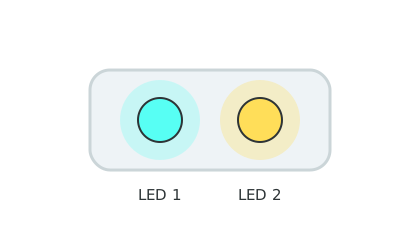
Each LED can become any color by mixing red, green, and blue light.
- LED
- a tiny light on the robot's board
- RGB
- red, green, blue — the three lights that mix into any color
- value
- a number from 0 to 255 for how bright one color is
- state
- what the robot is doing right now
Make sure you've finished Stage 1: Make It Move. Your robot drives and stops, and mBlock says Connected.
Build it
Step 1 — Turn both LEDs one color
The simplest light command: pick a color, set both LEDs.
Glow green
when green flag clicked
set led [all v] to color [#47c621] :: looks
Click the flag. Both lights glow green.
Step 2 — Mix your own color with numbers
The color picker is easy, but the red-green-blue block shows what color really is. Set each number yourself.
Mix a color
when green flag clicked
set led [all v] red (255) green (200) blue (0) :: looks
Run it — that is a warm orange-yellow. Change one number and run again. You are mixing light.
Step 3 — A color sequence
Now make the lights change over time, like a tiny light show.
Traffic light
when green flag clicked
set led [all v] to color [#47c621] :: looks
wait (1) seconds
set led [all v] to color [#ffde59] :: looks
wait (1) seconds
set led [all v] to color [#ff3030] :: looks
Green, then yellow, then red — just like a traffic light. The wait blocks give you time to see each color.
Pacing Lab
This lab is required before you move on. The goal is color you chose on purpose, not color you stumbled into.
Part A — Color recipe card (15 minutes)
On paper, write three colors you want and guess the numbers:
Color 1: __________  R ___  G ___  B ___
Color 2: __________  R ___  G ___  B ___
Color 3: __________  R ___  G ___  B ___
Now build each one and check it against your guess. Fix the numbers until the LED matches the color in your head.
Part B — State partner check (10 minutes)
Show a partner your traffic-light program with no explanation. Ask them: "What is each color telling you?" If they can read your states from the lights alone, your color choices are clear.
Understand it
A color is data — three numbers the robot turns into light. That is the same idea behind every color you have ever seen on a screen. Setting the numbers yourself, instead of using the picker, is what makes the LED feel like something you control instead of magic.
Using color for state is a real engineering habit. Robots, game consoles, and even washing machines use a light's color to tell a human what is happening inside. You just did the same thing: green for go, red for stop. Holding that habit makes your later programs easier to debug, because the robot can show you which part of the code it reached.
Try this
Try this
Three short experiments. Predict before you run, then test your guess.
What color do you get from red 255, green 255, blue 255? Guess before you run it. (Hint: it is all the colors at once.)
Set the LEDs with the color picker, then with the red-green-blue numbers, to make the same color. Which way did you like better, and why?
From now on, the robot can show its state with color. In Stage 4, what color would you flash when the robot sees a wall? Pick it now.
Test your stage
- You set both LEDs to a color with the green flag.
- You mixed a color using the red, green, and blue numbers.
- Your robot shows at least three colors in a row, with waits between them.
- Design check. Could a friend guess what each of your colors means without you explaining?
If it breaks
- The lights don't change. Check that mBlock still says Connected, and that you clicked the green flag. If only one block ran, you may be missing the waits between colors — without them the colors flash by too fast to see.
- The color is not what I picked. Bright LEDs look a little different from a screen — pure white can look bluish. Trust your eyes and adjust the numbers.
- Only one LED lights up. Your block is set to one LED instead of
all. Switch the dropdown toall, or set each LED on purpose if that is what you want.
This stage is a breather after the floor-space chaos of Stage 1 — campers stay at their seats. Use the calm to reinforce the "lights = state" idea, because it pays off in every sensor stage.
The red-green-blue block is where the real learning is. Some kids will only ever use the color picker; nudge them to set the numbers by hand at least once so "color is three numbers" lands.
Watch for kids who remove the waits and wonder why they only see the last color. It is a perfect, low-stakes example of "the computer is fast — too fast to see unless you tell it to wait."