Stage 4: Record and Replay Your Voice
Keep your Scratch project tab open every session. Open in a new tab so you don’t leave the course.
a brand-new app with a button that records and replays your voice
how to start a fresh project and reset effects on every run
a one-button voice replayer, ready to be transformed
Show the whole room how to start App 2 cleanly:
- File → New. Confirm the "start over?" pop-up. A blank cat project opens.
- Rename it Voice Changer — Coach Demo. Save Now.
- Record a short sentence in your voice (Sounds tab → Record). Trim, name it myvoice, save.
- On Code: when this sprite clicked → play sound (myvoice) until done. Click the cat — your voice plays back.
- Add when green flag clicked → clear sound effects. Explain: this resets the voice to normal every time the app starts.
The big idea
App 1 is saved and finished. Today we start a brand-new app — a Voice Changer — in its own fresh project. Keeping each app separate means none of them get crowded, and by the end you'll have three apps in your account, not one messy one.
A voice changer needs one thing before it can change anything: your voice, recorded. So Stage 4 is about capturing a clean voice clip and playing it back on a button. You already know how to record (Stage 2) — now you point that skill at your own talking.
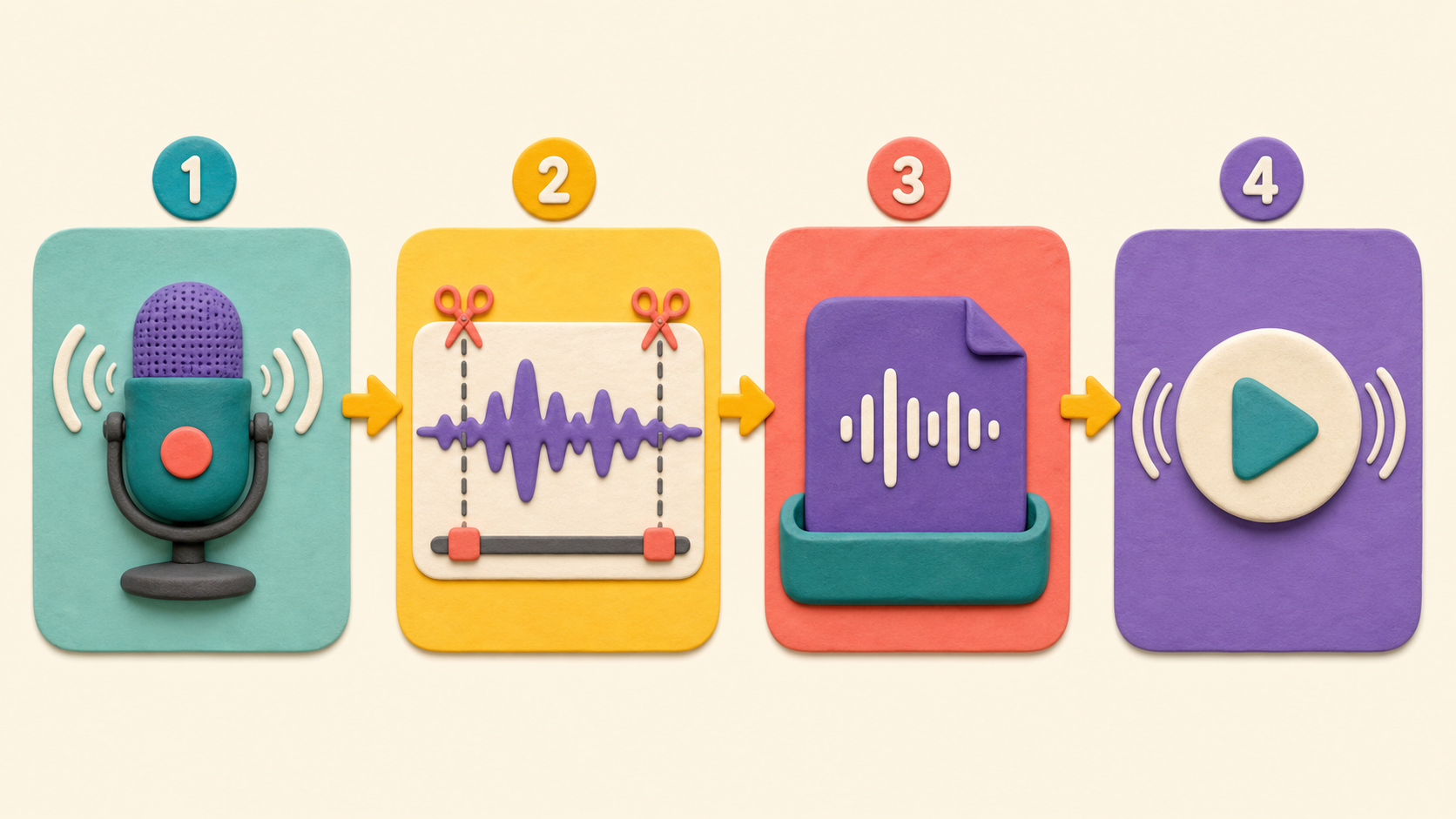
There's one new block: clear sound effects. In the next stage we'll bend your voice with effects, and effects stick — once you make your voice squeaky, it stays squeaky until you reset it. clear sound effects is the reset button. We add it on the green flag so every run of the app starts with your true, normal voice. Setting that habit now saves a confusing bug later.
- project
- one saved app; each app in this course is its own project
- File → New
- start a fresh, blank project
- sound effect
- a change to how a sound plays, like making it higher
- clear sound effects
- a block that resets a sprite's sound back to normal
Stage 3 should be done and saved — App 1 (your Meme Soundboard) is finished. We're about to start a new project, so make sure the soundboard is saved first. Starting fresh won't delete it; it's safe in My Stuff.
Build it
Step 1 — Start a new project for App 2
Click File → New at the top. Scratch asks if you want to start over — say yes (your soundboard is already saved separately).
A blank project opens with the Scratch Cat. Rename it:
Voice Changer — First Last
Click File → Save Now.
Step 2 — Record your voice
Click the Sounds tab. Open the recorder (speaker icon → Record) and record a short sentence in your normal voice — "Hello, this is my voice changer!" or "I am a robot from the future." Keep it under three seconds.
Trim the silence. Name it:
myvoice
Save the recording.
Step 3 — Make a button that plays your voice back
Go to the Code tab. Click the cat sprite. Build the replay button:
Play my voice (on click)
when this sprite clicked
play sound (myvoice v) until done
Click the cat on the stage. You hear yourself! This is the "normal voice" button — the baseline we'll bend in Stage 5.
Step 4 — Reset to normal on the green flag
Add a second, separate script to the same sprite:
Reset to a normal voice on start
when green flag clicked
clear sound effects
Why clear sound effects on the green flag
In Stage 5 you'll add buttons that make your voice high or low. Those effects stick — they stay on until something resets them. If you don't clear them, your app might open already squeaky from last time, and you'd swear it was broken. Putting clear sound effects on the green flag guarantees every run starts with your true voice. It's a tiny block that prevents a very confusing bug.
Step 5 — Test and save
Click the green flag (resets to normal), then click the cat (plays your voice). It should sound like you — no effects yet.
Save your project.
Understand it
Starting a new project for each app is a real-world habit. Apps that try to do everything in one crowded space become a tangle. Keeping the Voice Changer separate from the Soundboard means each one is simple to understand, simple to fix, and simple to show off. Three clean apps beat one confusing mega-app.
The clear sound effects block teaches a sneaky truth about effects: they're persistent. When you set an effect, it doesn't wear off — it stays until you change it or clear it. That's powerful (you'll lean on it next stage) but also a trap, because a left-over effect makes an app behave differently depending on what happened last. Resetting on the green flag is how pros guarantee a clean starting point. You already met this idea in Stage 3 (go to x y reset the positions); here the green flag resets the sound.
You also reused recording from Stage 2 with zero new instructions — you just knew how. That's what learning a skill once and reusing it feels like. The whole course is built that way.
Try this
Try this
Three short thinking checks. Use evidence from the stage you just built.
You have two scripts on one sprite now: one on the green flag, one on a click. Predict — when you click the cat, does the green-flag script run too, or only the click one? Try it. Each event only runs for its own trigger.
Record your voice once whispering and once in your biggest dramatic announcer voice. Put each on the button and listen back. Which one will be funnier after we make it squeaky next stage? Make a guess now.
Right now the button just plays your voice as-is. In Stage 5 we'll add one block before the sound to bend it high or low. Where in the click script do you think that block needs to go — before or after play sound?
Level up
Make the voice clip worth transforming next time:
- Level 1 — Clean take. Re-record until the start is crisp and there is no long silence.
- Level 2 — Character line. Record a line that already has a character, like a robot greeting or a tiny announcer.
- Level 3 — Before/after test. Play the clip for a partner and ask what emotion it has before any effects are added.
Debug mission
Remove or disconnect clear sound effects from the green-flag script, click around, then start again. If an old effect sticks, you found why reset blocks matter. Put clear sound effects back before moving on.
Test your stage
- You started a new project named Voice Changer — First Last.
- You recorded your own voice as myvoice and trimmed it.
- Clicking the sprite plays your voice back.
- A separate when green flag clicked → clear sound effects script exists on the sprite.
- You can explain what might happen if the app does not clear sound effects on start.
- Your project is saved (File → Save Now).
- Design check. Is your voice clip a good length — long enough to be funny, short enough to not drag? Three seconds is usually the sweet spot. Re-record if it rambles.
If it breaks
- I think I deleted my soundboard! You didn't — File → New makes a fresh project and leaves the old one safe in My Stuff. Click your username → My Stuff to see both projects.
- The recorder can't hear me. Same as Stage 2 — allow the microphone in the browser. Look for the mic icon in the address bar and set it to Allow.
- My voice doesn't play when I click. Check the play sound dropdown is set to myvoice, not the leftover Meow.
- The green-flag script doesn't seem to do anything. That's normal right now — there are no effects to clear yet, so clearing them looks like nothing happens. It becomes important in Stage 5. Leave it in.
The big mental shift this stage is "we're starting a new project." Some students panic that they're erasing their soundboard. Show My Stuff with both projects listed to prove it's safe — do this for the whole room before anyone clicks File → New.
clear sound effects looks like a do-nothing block today, and a few sharp kids will ask "why am I adding a block that does nothing?" Great question — answer honestly: it does nothing yet, but in Stage 5 it's the thing that keeps your voice from getting stuck squeaky. Setting the reset habit before it's needed is good engineering.
Mic noise is back — same crowd-control as Stage 2. If headsets exist, this is the stage to use them, because a clean solo voice clip transforms much better than one with five other kids yelling in the background.
Keep this stage tight (it's a setup stage for the payoff in Stage 5). If kids finish early, the longer catchphrase stretch directly improves their Stage 5 result.