Stage 1: Build the Ship Screen
Keep building in the workspace on the right.
This stage is part of the same Crewmate Task Dash project you started in Setup. Type each new code block into the Trinket rail and keep building on the last stage.
a Turtle screen, named boundaries, and a simple ship room
how coordinates give every game object a place
a spaceship map ready for characters and tasks
The big idea
Games need a map before they need controls. Python Turtle gives us a coordinate grid, and named edges make the grid readable.
- coordinate
- an x/y pair that names a point on the screen
- variable
- a name that stores a value the program uses later
- screen
- the Turtle window where the game appears
- boundary
- an edge the player should not cross
- module
- a Python file full of ready-made tools. `turtle` is a module.
- import
- the keyword that loads a module so your code can use its tools.
- integer
- a whole number like `0`, `20`, or `-300`.
- float
- a number with a decimal point, like `2.5` or `-100.0`.
Python concept
Variables
What it means: A variable is a name that stores a value so your program can use that value later.
Tiny Python example:
score = 0
player_name = "Ava"
speed = 20
In this game: `LEFT`, `RIGHT`, `TOP`, and `BOTTOM` are variables that remember the edges of the Turtle screen.
Why it matters: Without variables, the game would be full of mystery numbers. With variables, the code can say what each number means.
Check: Variables
In `score = 0`, which part is the variable name?
Check your thinking
`score` is the variable name. `0` is the value stored inside it.
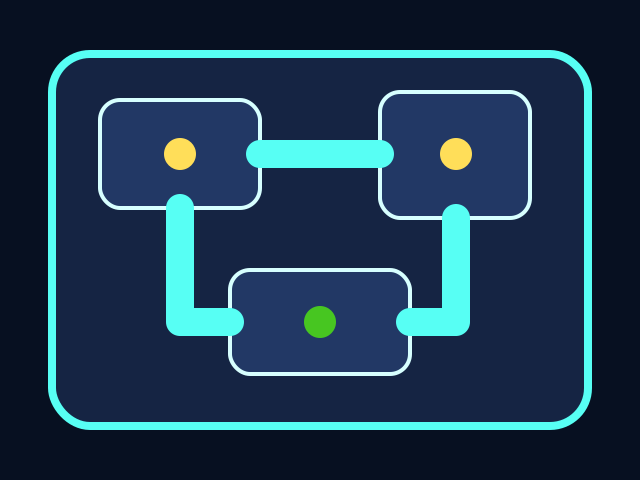


The player moves through the ship, collects tasks, and avoids the chaser. All playable shapes are drawn with Python Turtle code.
Build it
Read the coordinate map
If the center of the screen is `(0, 0)`, should `LEFT` be a positive number or a negative number?
Check your thinking
`LEFT` should be negative because x values get smaller as you move left from the center.
Type, run, test
Need a hint?
Add the new code to the same Trinket project. Keep previous stage code unless the stage says to replace a function.
Step 1 - Make the Turtle screen
Start with the window before you draw anything. `screen` is the object that owns the background color, the title, the keyboard events, and the timer the game will use later. Set this up first and every other line in the file has somewhere to land.
screen = turtle.Screen()
screen.bgcolor("midnight blue")
screen.title("Crewmate Task Dash")
You should see — a dark blue Trinket canvas opens with the title 'Crewmate Task Dash' at the top. Nothing is drawn yet — the screen exists, but no Turtle has touched it.
Need a hint?
Type and run one step at a time. If this step breaks, fix it before adding the next one.
Step 2 - Name the four edges
A first instinct is to treat the screen like a mystery box. These four variables turn the box into named game space: left, right, top, and bottom. Once the edges have names, every movement and collision check downstream can speak that same language.
LEFT = -screen.window_width() / 2
RIGHT = screen.window_width() / 2
TOP = screen.window_height() / 2
BOTTOM = -screen.window_height() / 2
You should see — nothing visible changes when you run this. Variables on their own do not draw — they just remember numbers the rest of the code can read. The proof comes in Step 3 when the border uses these names.
Step 3 - Draw the room border
The pen starts near the bottom-left corner, draws one side, turns left, and repeats. A `for` loop saves us from writing the same two commands four times, and it makes the pattern (forward, turn, forward, turn) impossible to miss.
You should see — a cyan rectangle appears inset from the screen edges. The pen finishes back at the same corner it started — that is the loop running its fourth side and fourth turn exactly the same way as the first.
Active coding checkpoint
Fill in the room edges
Complete the missing variable values. Then say which two variables should be negative before you run the code.
LEFT = -screen.window_width() / 2
RIGHT = ______________________
TOP = screen.window_height() / 2
BOTTOM = ______________________
Need a hint?
Try this before opening the solution. Type the starter code, then fill in or fix the missing part yourself.
Stuck? Compare carefully
main.py
`LEFT` and `BOTTOM` are negative because they move away from the center in the left and down directions.
LEFT = -screen.window_width() / 2
RIGHT = screen.window_width() / 2
TOP = screen.window_height() / 2
BOTTOM = -screen.window_height() / 2
main.py
Use this as the stage target after you understand the smaller steps. Add it to your current Trinket file.
#!/bin/python3
import turtle

screen = turtle.Screen()
screen.bgcolor("midnight blue")
screen.title("Crewmate Task Dash")

LEFT = -screen.window_width() / 2
RIGHT = screen.window_width() / 2
TOP = screen.window_height() / 2
BOTTOM = -screen.window_height() / 2

map_pen = turtle.Turtle()
map_pen.hideturtle()
map_pen.penup()
map_pen.color("cyan")
map_pen.setposition(LEFT + 40, BOTTOM + 60)
map_pen.pendown()
for side in [RIGHT - LEFT - 80, TOP - BOTTOM - 120, RIGHT - LEFT - 80, TOP - BOTTOM - 120]:
    map_pen.forward(side)
    map_pen.left(90)

turtle.done()
Trace the idea
- `LEFT`, `RIGHT`, `TOP`, and `BOTTOM` are calculated from the Trinket window.
- The map pen travels around the room and draws the border.
- Later, player movement will compare positions to these boundaries.
Understand it
Why this code works
- `window_width() / 2` gives half the screen width. The right edge is half a screen to the right of center, and the left edge is half a screen to the left.
- The names `LEFT`, `RIGHT`, `TOP`, and `BOTTOM` are constants. We use uppercase to signal: these are important values we do not plan to change during the game.
- The border is not just decoration. Later, movement code will ask if the player is still inside these edges before allowing a move.
If it breaks
Troubleshooting wisdom
If the cyan rectangle starts in the wrong corner, the bug is in the signs of the starting position. `LEFT + 40` pushes the pen right, into the room — `LEFT - 40` would push off the screen entirely. Walk the two starting lines slowly and ask: am I adding into the room, or away from it?
If no line appears at all, the pen never came down. Make sure `pendown()` runs before the `for` loop, not inside it. If it lands inside the loop, the first move happens with the pen still up and the first side of the room is silently missing.
If the screen blinks open and disappears the instant you click Run, the last line is missing or got moved. `turtle.done()` is what tells Trinket to keep the window open after the drawing finishes. Put it back as the final line of the file and the room stays visible.
Try this
Try this
Three short thinking checks. Use evidence from the stage you just built.
Test your stage
- The screen opens.
- The background is dark.
- A cyan room border appears.
- The four edge variables are named in all caps.