Setup: Your Unity Project
Unity installed and signed in, a code editor connected, and a fresh 2D project with the Castle Defense art imported and sliced
what Unity and a code editor are, and how to get a C# script running
a saved project that prints a message when you press Play
The big idea
Unity is the program game studios use to build real games. Before we build anything, there's some one-time setup: install Unity, sign in, connect a code editor (the program where you'll type your C#), create the project, bring in our art, and prove that a script actually runs. Take it slow — you only do this once.
Two programs work together all week. Unity is the engine: it shows your game, runs it, and holds your GameObjects. A code editor (like Visual Studio or VS Code) is where you write the C# scripts. Unity opens the editor for you when you double-click a script.
- Unity Hub
- The launcher that installs Unity versions and opens your projects. You sign in here with a free Unity account.
- Code editor
- A separate program (Visual Studio or VS Code) where you type your C# scripts. Unity runs the game; the editor is where you write it.
- Scene
- The game world you're editing right now — like one level. You save it as a file.
- GameObject
- Anything that lives in a Scene: a tower, an enemy, the camera.
- Component
- A piece you bolt onto a GameObject to give it a behavior (a Sprite Renderer to show art, a script to make it move).
- Inspector
- The panel that shows everything about the GameObject you have selected.
- Console
- The panel where your script's messages and errors show up.
Build it
Step 1 — Install Unity Hub and sign in
Unity is free. You manage it through Unity Hub, a small launcher app.
- Go to unity.com/download and install Unity Hub.
- Open the Hub. It asks you to sign in — create a free Unity account (a "Unity ID") if you don't have one, then sign in. (Campers under 13 should have a parent or coach set this up.)
- Unity also needs a license — the free Personal one is perfect. The Hub usually prompts you the first time; if not, open the Hub's settings gear → Licenses → Add → Get a free personal license.
A license sounds scary but it's just Unity confirming you're allowed to use the free version. You are.
Step 2 — Install the Unity Editor with a code editor
In the Hub, go to Installs → Install Editor and pick Unity 6 LTS (LTS means "long-term support" — the stable version everyone uses).
On the next screen, Unity lists optional modules. The important one for us is a code editor:
- On Windows, check Microsoft Visual Studio Community if you don't already have an editor.
- On Mac, you'll install a code editor separately — Visual Studio Code is free and works great. Install it now if you don't have one.
Leave the other defaults as they are and click Install. This is a big download, so it can take a while — start it early.
Step 3 — Tell Unity which code editor to use
Once Unity is installed, open it (you'll make the project in Step 4) and point it at your editor so double-clicking a script opens the right program:
- Windows: Edit → Preferences → External Tools → External Script Editor, and choose Visual Studio (or VS Code).
- Mac: Unity → Settings → External Tools → External Script Editor, and choose Visual Studio Code.
If you skip this, double-clicking a script later might open nothing or the wrong program — this is the fix.
Step 4 — Create the project
In the Hub, click New project, choose the 2D (Built-In Render Pipeline) template, name it CastleDefense, and click Create. Unity takes a minute to open.
When it opens you'll see the main panels: Scene (the editable world), Game (what the player sees), Hierarchy (a list of everything in the Scene), Inspector (details of what you select), Project (your files), and Console (messages).
Step 5 — Save your scene (and keep saving it)
A brand-new scene is unsaved — its name says Untitled. Save it before you do anything: File → Save As, make a new folder called Scenes inside Assets, and name the scene Game.
From now on, press Ctrl+S (Windows) or Cmd+S (Mac) often. Unity does not auto-save your scene, and — important — anything you change while the game is playing is thrown away when you press Stop. Build with Play off; use Play to test.
Step 6 — Import the art and sounds
Download the asset pack below. Then, in Unity's Project panel, make two folders inside Assets: one called Sprites and one called Audio. Drag tilemap.png into Sprites and drag the six .ogg sounds into Audio.
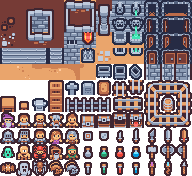
Download what you need, then drag it into your Unity project's Assets folder. Keep the filenames exactly as shown so the steps match.
Art & audio from Kenney.nl — CC0 (public domain). Full credits live in CREDITS-unity-part1.md.
Everything is one spritesheet — a single image holding all the art. Next we cut it into separate sprites.
Step 7 — Slice the spritesheet
Click tilemap.png in the Project panel. In the Inspector, set these and click Apply:
- Sprite Mode: Multiple (the sheet holds many sprites, not one)
- Pixels Per Unit: 16 (our tiles are 16×16)
- Filter Mode: Point (no filter) — keeps pixel art crisp
- Compression: None — no blurry edges
Now click Sprite Editor. In the editor, open Slice (top-left), choose Type: Grid By Cell Size, set Pixel Size to 16 × 16, click Slice, then Apply and close the window.
Expand tilemap.png in the Project panel — it now fans out into many individual sprites (tilemap_0, tilemap_1, …). When a stage says "the slime sprite," you'll pick the green blob from this list by eye.
Step 8 — Make a script run
Let's prove C# works. In the Hierarchy, right-click → Create Empty, name it GameSetupTest. In the Inspector, click Add Component → New Script, name it Hello, and create it. Double-click the script — it opens in the code editor you set up in Step 3 — and replace the contents with:
using UnityEngine;

public class Hello : MonoBehaviour
{
    void Start()
    {
        Debug.Log("Castle Defense is running!");
    }
}
Save the file (Ctrl/Cmd+S in the editor too), return to Unity, and press the Play button at the top. Look at the Console panel — you should see Castle Defense is running!. Press Play again to stop.
Start() is a method Unity calls once, the moment the game begins. Debug.Log(...) prints a message to the Console. This "write code → save → Play → read the Console" loop is how you'll check every script this week.
Understand it
Two programs, two jobs. Unity holds your game and runs it; the code editor is where you write the scripts Unity runs. They talk to each other: you write and save in the editor, then tab back to Unity and press Play.
Unity games are made of GameObjects with Components on them. A tower is a GameObject with a Sprite Renderer (to show it) and a script (to make it shoot). You almost never write a whole program in one file — instead you attach small scripts to objects, and Unity runs them. The empty GameSetupTest object you made was just a test; you can delete it once the Console message works.
Test your setup
- Unity Hub is installed and you're signed in with a Unity account and a free Personal license.
- Unity 6 LTS is installed, and a code editor (Visual Studio or VS Code) opens when you double-click a script.
- The project opens to a 2D Scene with the standard panels visible.
- Your scene is saved in
Assets/Scenes(its tab no longer says Untitled). -
tilemap.pngis inAssets/Sprites, the six sounds are inAssets/Audio, and the sheet expands into many sprites after slicing. - Pressing Play prints
Castle Defense is running!in the Console. - Design check. Can you point to the Scene, Game, Hierarchy, Inspector, Project, and Console panels without looking them up?
If it breaks
- The Hub won't let me do anything. You're probably not signed in, or there's no license. Sign in with your Unity account, then add the free Personal license (settings gear → Licenses).
- Double-clicking a script opens nothing, or the wrong program. Your editor isn't connected. Set External Script Editor (Step 3). On Mac you also need VS Code actually installed first.
- The install is taking forever. The Unity Editor is a large download. Let it run; start it before camp if you can.
- No "2D" template in the Hub. You may have an older Unity. Any Unity 6 or 2022 LTS version works; just pick the 2D template it offers.
- The art looks blurry or has seams. Re-check the import settings: Filter Mode must be Point and Compression None.
- Slicing made one giant sprite. Sprite Mode was still Single. Set it to Multiple, Apply, then slice again.
- The Console stays empty on Play. Make sure the
Helloscript is attached to theGameSetupTestobject, and that the class nameHellomatches the file name exactly. Unity is strict about that. - My work disappeared. You either didn't save the scene, or you made the changes while Play was running (those are discarded on Stop). Save often, build with Play off.
The biggest pre-camp task is the install: Unity accounts, the Editor download, and a code editor on every machine. Do it the day before — the download is large and the Unity-account step needs an email. The two first-run snags are the license (sign in, add Personal) and the External Script Editor not being set (double-click opens nothing). Knock both out before Step 4. Remind campers Unity doesn't auto-save and that Play-mode edits vanish — the "my work is gone" panic is almost always one of those two.