Geometry Dash
Scratch course
Geometry Dash
Members build an original neon cube-runner in Scratch — jump timing, scrolling spikes, portals, score, music cues, and a final demo-ready level.
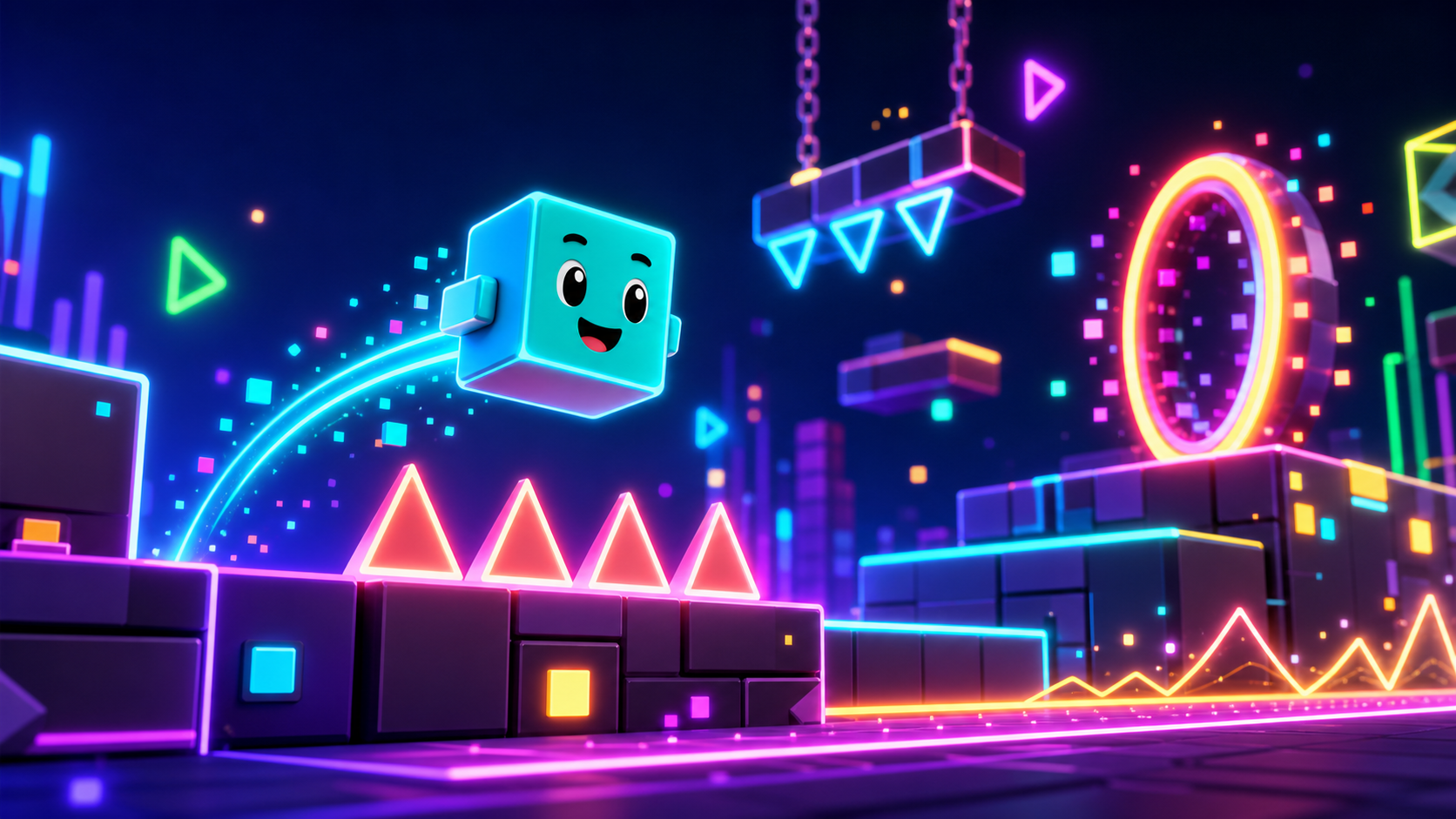 Original Scratch project
What members ship
A rhythm platformer they can replay and tune
Every stage adds a visible system to the same Scratch project. By the last stage, members have a playable cube-runner with their own art choices and a showcase-ready finish screen.
A cube that jumps with gravity and clean restart logic
Scrolling spike patterns, portals, score, timer, and sound cues
Custom Scratch assets members can draw, remix, and explain
Project moments
Each stage adds a playable mechanic
The course uses generated visual examples for polish, then teaches members how to draw their own Scratch-native versions.
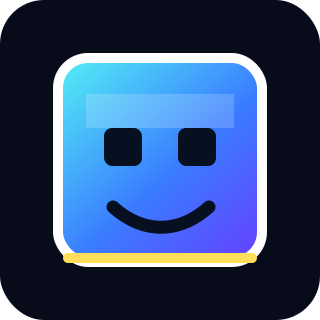
Jump timing
A cube stays near the left side of the stage while obstacles scroll toward it. One jump at the wrong time means restart.
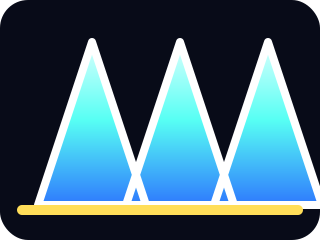
Spike patterns
Members build simple spikes first, then use clones to create repeatable patterns that feel like a real level.
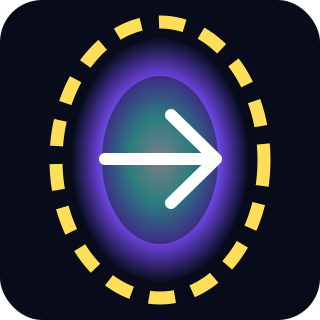
Portal moment
A portal flips the rules and teaches how one variable can change the way a whole control system behaves.
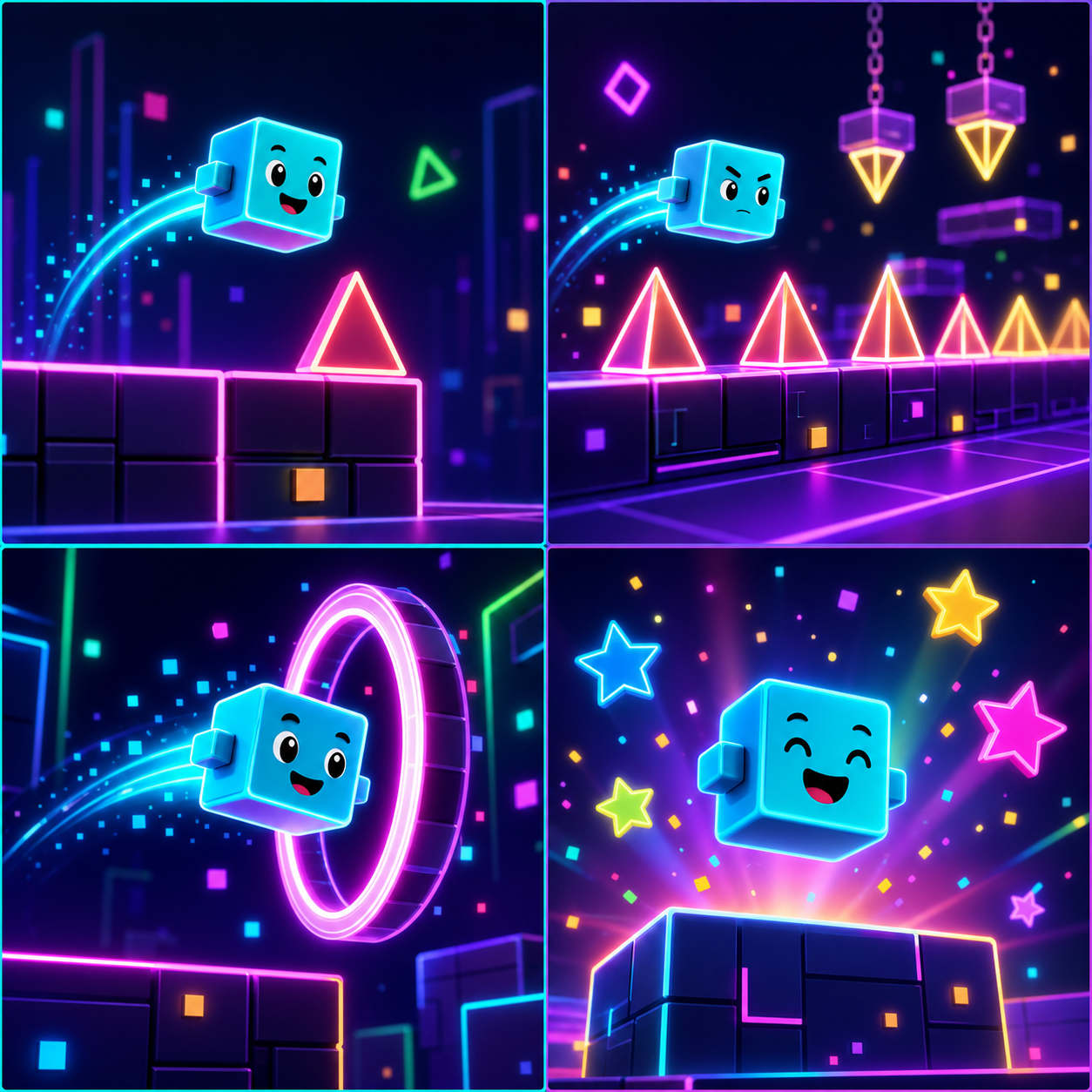
Neon polish
Backdrop, pulse effects, sound cues, and final readouts make the project feel finished without hiding the code.
Course path
Your level grows system by system
Every stage has an instructor demo, build steps, Scratch blocks, a test list, stretch challenges, and instructor notes.
Create the Cube Runner
Jump Controls
Ground and Spikes
Auto-Scroll Motion
Spawn Patterns
Score and Timer
Portal Flip
Rhythm Cues
Level Polish
Finish Screen
How to start
- Ask your instructor for your class code. They read it out at the start of class.
- Make your account. First name, last name, a username and a password you pick.
- Sign in anywhere. Your work is saved to your account, not to one computer.
For instructors
Hybrid assets keep everyone moving
Members can use the target examples or draw their own. Keep sprite and variable names consistent so the scripts stay easy to follow.
What is this course?
This Scratch course builds an original Geometry Dash-inspired rhythm platformer. The player controls a cube, jumps over spikes, survives scrolling patterns, hits portals, follows sound cues, and finishes with a score screen.
The course does not ask members to copy official game art, logos, screenshots, or level names. The visual examples are original course assets, and every build stage also explains how members can draw their own cube, spikes, portal, and backdrop in Scratch.
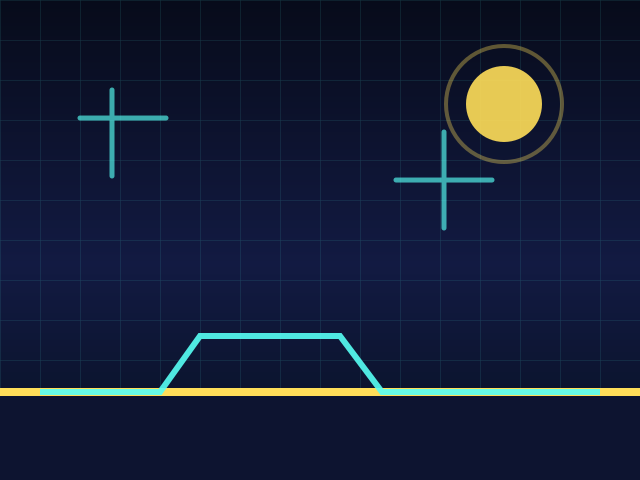
The cube stays near the left side while the level scrolls toward it. Jump timing is the whole game.
Course time
Course Intro (30) · Setup (45) · Stage 1 (45) · Stage 2 (60) · Stages 3–10 (90 each) = 900 minutes, about 15 hours.
That same material runs two ways:
- School semester — one class a week for 16 weeks. One stage per week, with catch-up, stretch, and showcase weeks built in.
- 5-day intensive — 3 hours a day for 5 days. Two to three stages a day, closing with a showcase.
Instructors: the week map and the day-by-day plans are both in the Instructor Guide.
If a stage runs long, pull from stretch challenges first. Stage 10 should keep enough time for the final demo.
Who this is for
This course is built for Scratch beginners. Members should be able to read short instructions, drag Scratch blocks, and test often. No typing-based coding experience is required.
Every stage includes:
- a short instructor demo
- the big idea
- new Scratch words
- build steps
- Scratch block previews
- tests
- break-fix notes
- stretch challenges
- instructor notes
These generated images show the style target. Members can still draw their own cube, spikes, portals, and backdrop inside Scratch.
Asset approach
Members have two valid paths:
- Use the examples. Follow the course visuals so the build moves quickly.
- Make your own. Draw original cube, spike, portal, and backdrop art in Scratch.
Both paths use the same sprite names and variables so instructors can debug everyone with the same lesson.
To import: download the asset, open Scratch, choose Upload Sprite, Upload Backdrop, or Upload Costume, then select the file. You can also draw your own instead. Keep the required sprite names from the lesson.